 posy
posy


To add a link to your Instagram bio, open the Instagram app, go to your profile, tap Edit profile, tap Links, then Add link. Enter the URL and a title and tap Done. You can repeat this for up to 5 links without a subscription. Only the first shows on your profile; the rest sit behind a tap.
That is the whole answer for most people. The rest of this guide covers the details that trip people up: which link shows first, why a link is not clickable, what Meta One changes, and when a single link-in-bio page is the better choice. The steps match Meta's help article as of October 2026. Instagram moves things around, so if a label looks different, look for the closest match.
#Add a link, step by step
On your phone, in the Instagram app:
- Tap Profile or your profile picture in the bottom right.
- Tap Edit profile.
- Tap Links.
- Tap Add link (on some versions, Add external link).
- Paste the URL and type a short Title, such as "Shop" or "New video".
- Tap Done.
Repeat for each link, up to five. Short titles work better than raw addresses, because the title is what people see.
Tip: copy the link first. Open the page in your browser, copy the address from the address bar, then paste it in step 5. Typing a long URL on a phone is where most broken links come from.
#Which link shows on your profile
Your profile shows one link, followed by "and 4 others" (or however many you have). People tap that to see the full list.
So the order matters. Put the link you most want tapped first: usually your link page, your shop or your latest release. Meta's help article also describes a Show as primary link toggle, under Edit next to a link, which needs at least two links. If you see it, use it to pick the link that leads.
#Edit or remove a link
- Go to Edit profile, then Links.
- Tap Edit next to the link (or the three dots on some versions).
- Change the URL or title, or tap Remove link.
- Tap Done.
Removing a link only removes it from your bio. The website it pointed to is not affected.
#Why your link is not clickable
If you typed a web address into the Bio text box, it will not be clickable. Instagram only makes links clickable when they are added under Links. Delete the address from the bio text and add it through the steps above.
Other common causes:
- A typo in the URL. Open the link from your profile yourself to check.
- A link Instagram does not allow. Links must follow Instagram's Community Standards. Some shorteners and flagged domains are refused.
- The page is down. If the link opens but the page fails, the problem is on the site, not Instagram.
#Five links, Meta One, or one link page?
| Option | Links | Images and design | Works outside Instagram | Cost (Oct 2026) |
|---|---|---|---|---|
| Instagram's own links | Up to 5 | No | No | Free |
| Instagram with Meta One | Up to 20, with images and a shareable link page | Basic | Yes, via its URL | Meta One subscription |
| A link-in-bio page | Unlimited on most tools | Yes | Yes | Free plans exist |
Five built-in links are enough if your list is short and you only use Instagram. A link-in-bio page is better when:
- You have more than five things to share, or they change often.
- You use other platforms. TikTok, YouTube and X each want a link too, and one page means you update it in one place.
- You want it to look like you. A page can show your work, a video or a note about commissions, not just titles.
- You want stats. Most link pages tell you which links get tapped.
A common setup is both: your link page as link one, and your single most important direct link as link two, so people have a backup if a page is ever down.
#Make a link page in a minute
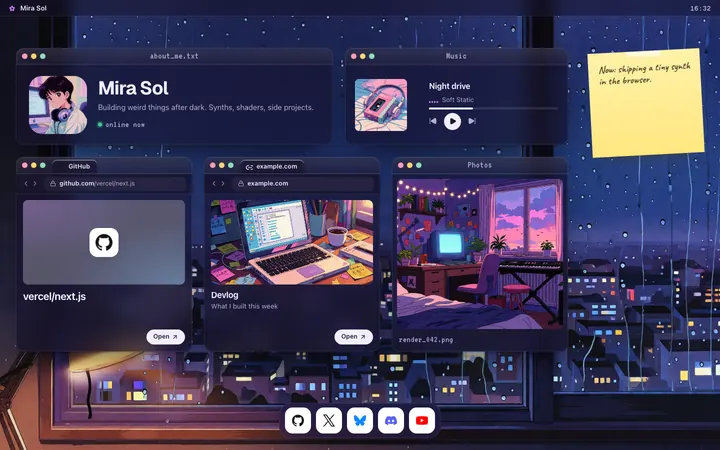
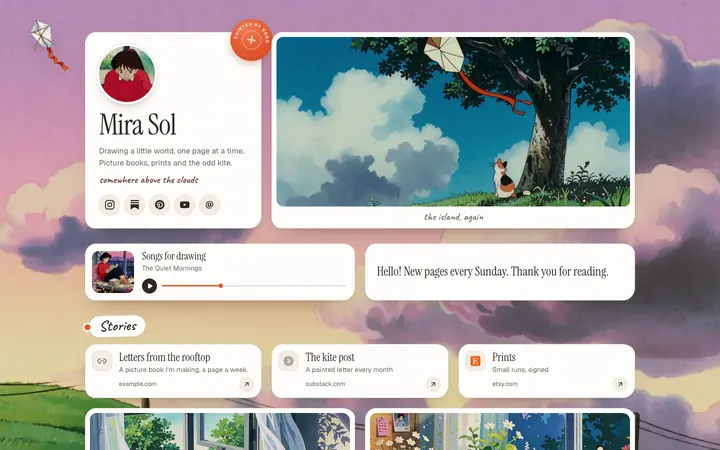
If you decide on a page, here is the quick route with Posy, which is free and open source. (I make it, so bear that in mind.)
- Sign up and pick a username. Your page lives at
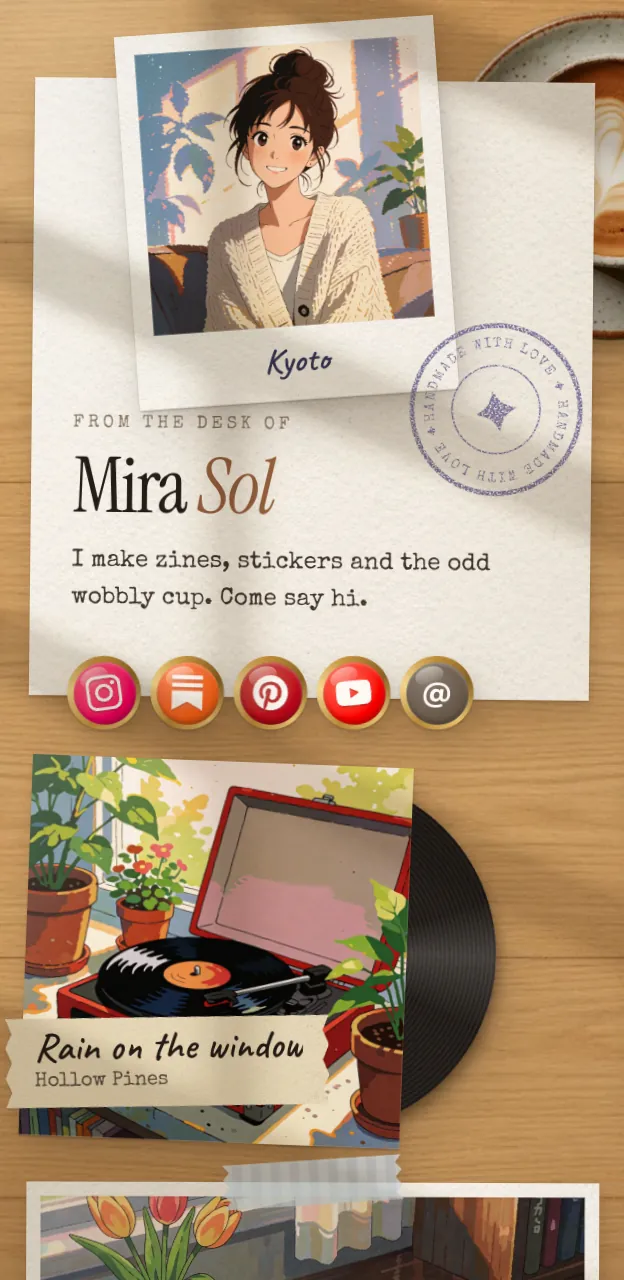
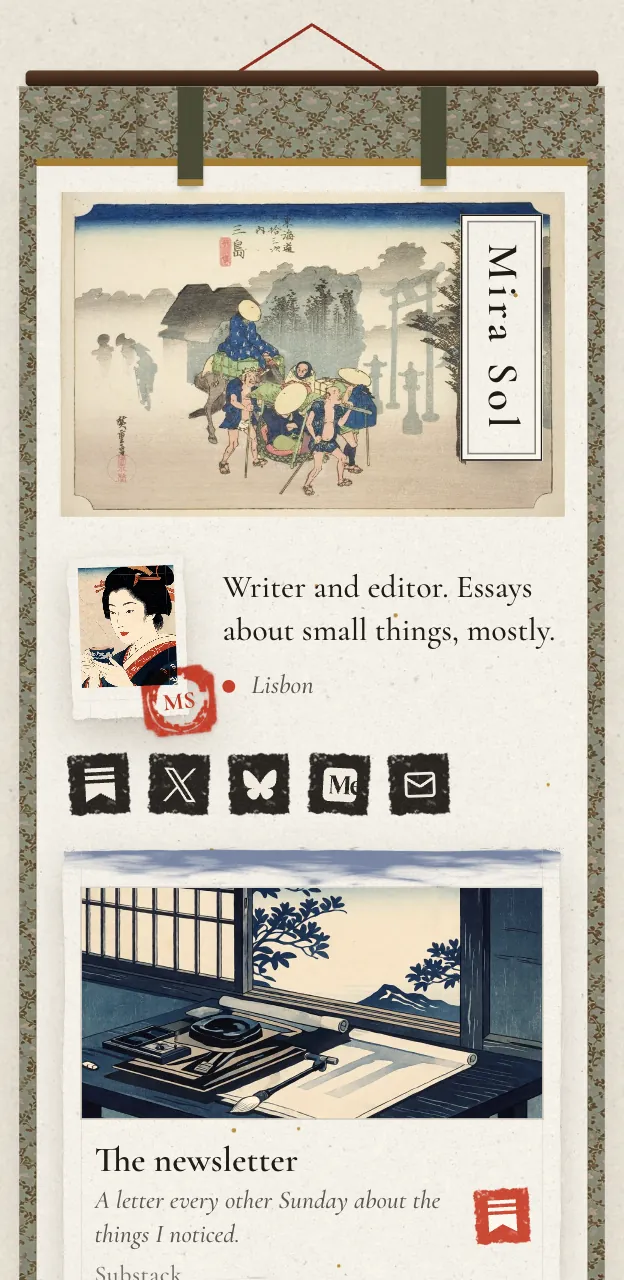
posy.page/yourname. - Paste your links. Each one becomes the right kind of tile: a YouTube link becomes a video, a Spotify link a music card, an image a polaroid.
- Pick a look. Painted, Desk and Lofi are free.
- Publish, copy your address, and add it as your first link in Instagram.
You can also ask ChatGPT or Claude to make the page for you. See can ChatGPT make a website for me for prompts that work.
#Where Posy is not the right pick
- You only have two or three links. Instagram's built-in links do the job for free. You do not need a tool.
- You sell from your bio. Posy has no checkout. A shop's own page or a storefront tool fits better.
- You need link scheduling or campaigns. Posy does not schedule links. Linktree's paid plans do.
For a wider view, see free Linktree alternatives or the Linktree alternative page.
#FAQ
#How many links can I add to my Instagram bio?
Up to 5 without a subscription. With an eligible account and a Meta One subscription, up to 20, according to Meta's help center in October 2026.
#Can I add a link to my Instagram bio from a computer?
The steps in Meta's help article are for the app. If you do not see Links in the web version, use your phone.
#Why does only one link show on my profile?
Instagram shows the first link and hides the rest behind "and X others". Put the most important link first.
#How do I make the link in my Instagram bio clickable?
Add it under Edit profile, then Links. Addresses typed into the bio text are not clickable.
#Do I still need a link in bio tool?
Not if five plain links cover what you share. A link page helps when you have more, use other platforms, or want the page to show your work.