 posy
posy


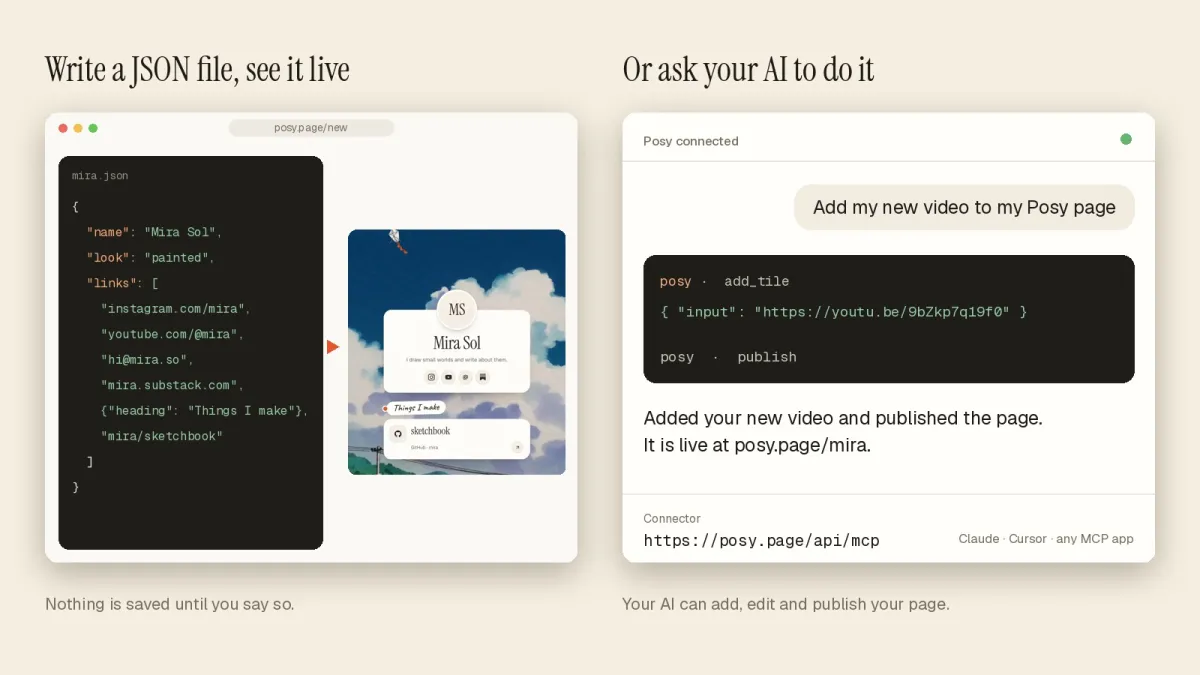
Most "AI link in bio" tools generate a page from a prompt, and what you get back is a page you then have to go and edit by hand. This is a different idea. Your AI app connects to your real Posy account and edits your actual page, one tile at a time, the way you would.
It works through MCP, and once it is connected, "add my new video and switch to the dark look" is something you can simply say. This guide covers what MCP is, how to connect it, what the AI can do and how to keep it safe.
#What MCP is, in one paragraph
MCP is the Model Context Protocol, an open standard that lets AI apps use tools. A server exposes a list of actions, and an AI app can call them. Posy runs an MCP server at https://posy.page/api/mcp. When your AI app connects to it, it can read your page, add and change tiles, switch looks and publish, because those are the actions the server offers. You sign in with your Posy account, so there is no key to copy around.
#What your AI can do
The server offers a small set of tools, and each one maps onto something you would do in the editor.
| Tool | What it does |
|---|---|
get_page |
Reads your draft, your public URL and what to do next |
create_page |
Claims a username and creates your page, once |
import_page |
Loads a whole page from a page file |
add_tile |
Adds one link, or many at once. Posy picks the right tile |
update_tile, move_tile, remove_tile |
Changes, reorders or deletes a tile |
set_theme, set_profile |
Look, colours, fonts, name and bio |
publish |
Makes the draft live |
list_options |
Lists allowed looks, palettes, fonts and sizes |
The last one matters more than it looks. Because the AI can ask Posy which looks, palettes and fonts exist, it does not have to guess or invent names that do not exist.
#Connect it once
The steps differ a little between apps. The server address is the same everywhere: https://posy.page/api/mcp.
#Claude
In Claude, open Settings, then Connectors, then add a custom connector. Name it Posy, paste the address, and sign in to Posy when asked.
#ChatGPT
In ChatGPT, open Settings, then Apps and Connectors, then Advanced, and turn on developer mode. Create a new app, paste the address, choose OAuth and sign in to Posy.
#Cursor, VS Code and Codex
Cursor and VS Code have one-click installs on the docs page. If you prefer a config file, add this to ~/.cursor/mcp.json or your project's .mcp.json:
{
  "mcpServers": {
    "posy": { "url": "https://posy.page/api/mcp" }
  }
}
For Claude Code, run claude mcp add --transport http posy https://posy.page/api/mcp, then choose Authenticate inside Claude Code. For Codex, run codex mcp add posy --url https://posy.page/api/mcp.
#If you cannot open a browser
Scripts and tools that cannot do the sign-in can use an API key from the Agents page of your dashboard, sent as Authorization: Bearer posy_....
#Ask for what you want
Once it is connected, talk to it the way you would to a person who knows Posy. Here are prompts that work well.
Making the first page
Make me a link in bio for a ceramics studio called Clay and Co. Use the Desk look. Add my Instagram clayandco, my Etsy shop at etsy.com/shop/clayandco, and my email hello@clayandco.example. Don't publish yet, I want to see it first.
Weekly upkeep
Add this YouTube video as a large tile at the top, and change my note to say commissions are open until November. Then publish.
A makeover
Switch to the Cobalt look in the moonlit palette and print my photos in mono. Keep all my links.
Tidying up
Group my links under three headings: Listen, Read and Elsewhere. Move the newsletter to the top of Read.
You will notice the prompts say what you want, not how to do it. The AI turns that into the right sequence of tool calls.
#Everything lands in your draft
This is the part that makes it comfortable to hand over. Everything the AI does goes into your draft. Nothing goes live until you publish, or ask it to.
Edits are also version-checked. If you are in the editor while your AI is working, neither of you can overwrite the other's changes by accident, because each edit is checked against the version of the page it started from. If you have moved on, the edit is refused rather than quietly clobbering your work.
A good habit is to ask the AI to leave the page unpublished, look at it in the editor, and press publish yourself.
#If your AI has no tools
Some AI apps cannot use MCP. Posy has a fallback for those: a single link that opens a live preview of a page, with one button to make it yours.
The AI builds a normal URL, like this.
https://posy.page/new?name=Mira%20Sol&bio=Illustrator&links=https://github.com/mira,hi@mira.so,mira/atlas
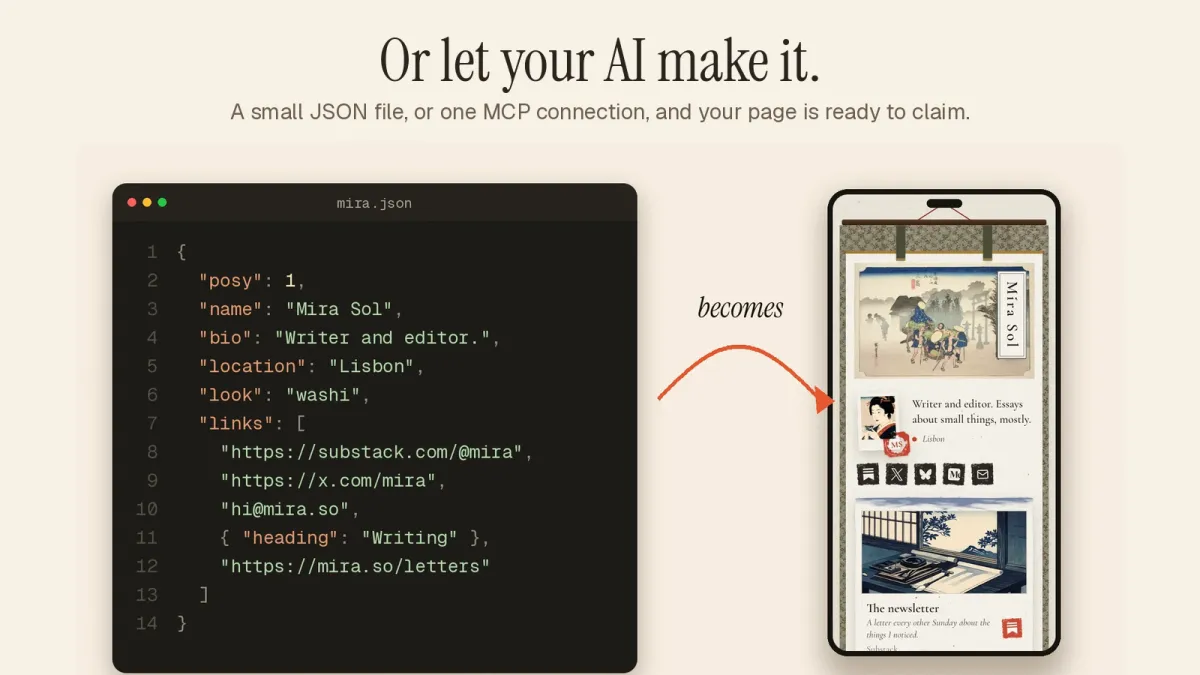
You open it, see the preview and press the button. The fields are name, bio, links (comma-separated URLs, emails or owner/repo), and options like look, theme, layout, location, font and backdrop. For longer pages, the AI can pass a JSON brief instead. The instructions live at /llms.txt, which AI apps can read, so you can usually just say "make me a Posy page" and let the app find them.
#Why this beats generating a page
Generated pages are fine for a first draft. They are awkward for the second month, when you want to add a link, swap a video or change a note. Then you have a static result and an editor you have to learn.
With MCP the AI is working inside the real tool. It can read what is already on the page before changing it, it respects what you have placed, and it can keep the page current as often as you ask. The page is still yours: you can edit it by hand at any time, and the whole thing is one JSON file you can download.
#Safety, briefly
A few things are worth knowing before you connect anything.
- Scope. The tools work on your Posy account and your page, and nothing else.
- Sign-in. App connections sign in with your Posy account. Keys made on the Agents page can be revoked there.
- Review before publishing. Ask for the draft first, especially the first time.
- Ask before deleting. If you tell your AI to be careful, it can be. A good instruction is "ask me before you remove anything I added".
#Using it with a team of tools
Because the page is one file with a public schema and the same actions are available as a REST API and a CLI, the AI is only one of several ways in. A developer might ask Claude for the big changes and use the CLI in a script for the small ones. See link in bio for developers for that setup.
If you run Posy yourself, the MCP server is part of the app, so it works on your own address too. Replace posy.page with your domain. The self-hosting guide has the setup.
#Try it
The shortest path: make a page, open Settings, connect your AI app, and say what you want. Start with something small, like "change my bio", and watch the editor update while it works.